> ## Documentation Index
> Fetch the complete documentation index at: https://docs-dev-fix-ss-log-app-metadata-user-metadata-clarification.mintlify.site/llms.txt
> Use this file to discover all available pages before exploring further.

> Learn how to configure a progressive profile form using Forms for Actions

# Use Cases: Configure a progressive profile form using Forms

<Card title="Before you start">
  1. Create a [Machine-to-Machine Application](/docs/get-started/auth0-overview/create-applications/machine-to-machine-apps) with the following scopes enabled:

  * `read:users`
  * `update:users`
  * `create:users`
  * `read:users_app_metadata`
  * `update:users_app_metadata`
  * `create:users_app_metadata`

  2. Add a [Vault connection](/docs/customize/forms/vault) using the M2M application credentials.
</Card>

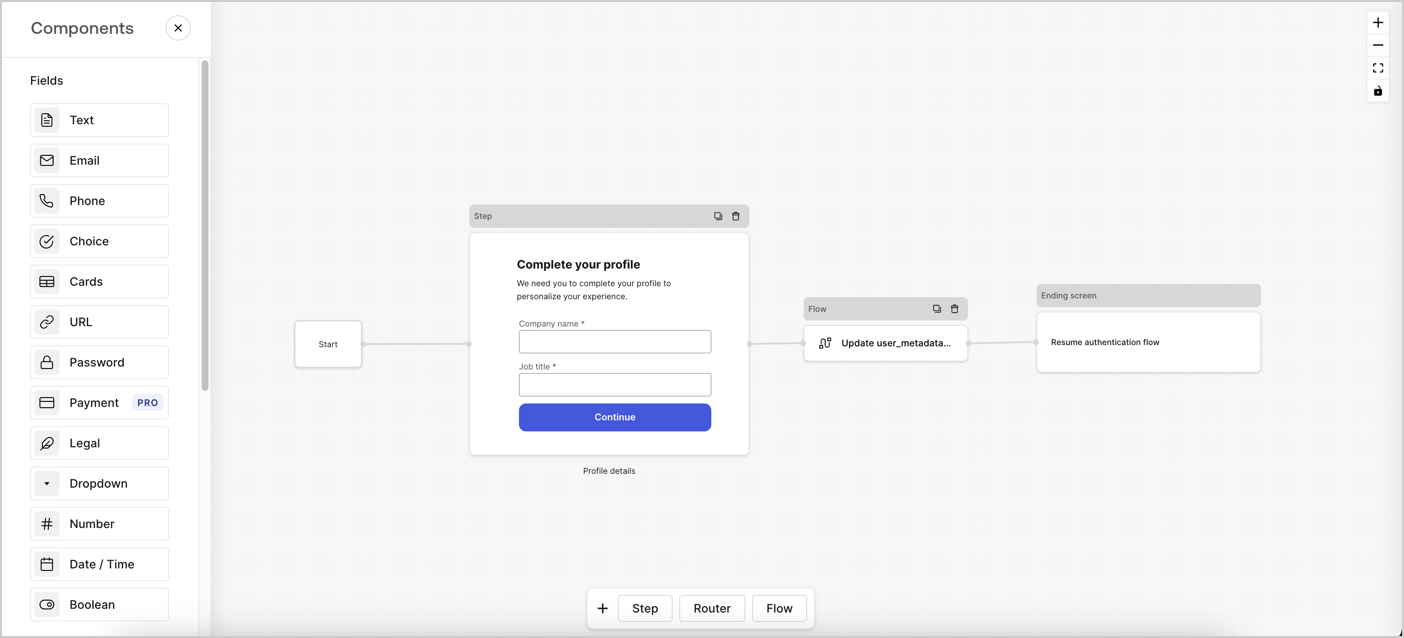
Forms for Actions allows you to create progressive profiling flows to decide when to prompt users to collect missing information, such as company name and job title, and store them as `user_metadata` attributes.
<Frame>
  <img src="https://mintcdn.com/docs-dev-fix-ss-log-app-metadata-user-metadata-clarification/ab_Y6DP4UNn3QULv/docs/images/cdy7uua7fh8z/xUx9YmnHvnAqL19JvNtNP/60dae88f893d4ebe8e3523421e960596/Progressive-profle-overview.png?fit=max&auto=format&n=ab_Y6DP4UNn3QULv&q=85&s=3fa27a1fe00242574bb1e42187942711" alt="Dashboard > Actions > Forms > Form" data-og-width="1404" width="1404" data-og-height="638" height="638" data-path="docs/images/cdy7uua7fh8z/xUx9YmnHvnAqL19JvNtNP/60dae88f893d4ebe8e3523421e960596/Progressive-profle-overview.png" data-optimize="true" data-opv="3" srcset="https://mintcdn.com/docs-dev-fix-ss-log-app-metadata-user-metadata-clarification/ab_Y6DP4UNn3QULv/docs/images/cdy7uua7fh8z/xUx9YmnHvnAqL19JvNtNP/60dae88f893d4ebe8e3523421e960596/Progressive-profle-overview.png?w=280&fit=max&auto=format&n=ab_Y6DP4UNn3QULv&q=85&s=ece6455bb9d14911fb702735a98f4776 280w, https://mintcdn.com/docs-dev-fix-ss-log-app-metadata-user-metadata-clarification/ab_Y6DP4UNn3QULv/docs/images/cdy7uua7fh8z/xUx9YmnHvnAqL19JvNtNP/60dae88f893d4ebe8e3523421e960596/Progressive-profle-overview.png?w=560&fit=max&auto=format&n=ab_Y6DP4UNn3QULv&q=85&s=05a3761d750a0cedde0bc571c30dd5d1 560w, https://mintcdn.com/docs-dev-fix-ss-log-app-metadata-user-metadata-clarification/ab_Y6DP4UNn3QULv/docs/images/cdy7uua7fh8z/xUx9YmnHvnAqL19JvNtNP/60dae88f893d4ebe8e3523421e960596/Progressive-profle-overview.png?w=840&fit=max&auto=format&n=ab_Y6DP4UNn3QULv&q=85&s=7bf07cbbfc5113175ef7400e557cbfd3 840w, https://mintcdn.com/docs-dev-fix-ss-log-app-metadata-user-metadata-clarification/ab_Y6DP4UNn3QULv/docs/images/cdy7uua7fh8z/xUx9YmnHvnAqL19JvNtNP/60dae88f893d4ebe8e3523421e960596/Progressive-profle-overview.png?w=1100&fit=max&auto=format&n=ab_Y6DP4UNn3QULv&q=85&s=88b960a1b596b57ce3e5890f9ca8784d 1100w, https://mintcdn.com/docs-dev-fix-ss-log-app-metadata-user-metadata-clarification/ab_Y6DP4UNn3QULv/docs/images/cdy7uua7fh8z/xUx9YmnHvnAqL19JvNtNP/60dae88f893d4ebe8e3523421e960596/Progressive-profle-overview.png?w=1650&fit=max&auto=format&n=ab_Y6DP4UNn3QULv&q=85&s=6b732beaf90638101cd3639e822224be 1650w, https://mintcdn.com/docs-dev-fix-ss-log-app-metadata-user-metadata-clarification/ab_Y6DP4UNn3QULv/docs/images/cdy7uua7fh8z/xUx9YmnHvnAqL19JvNtNP/60dae88f893d4ebe8e3523421e960596/Progressive-profle-overview.png?w=2500&fit=max&auto=format&n=ab_Y6DP4UNn3QULv&q=85&s=d4454fbea1fefad0047940e2734cbda6 2500w" />
</Frame>

The sections below outline how you can create a progressive profile form using nodes and flows, along with steps for adding your form to a [Post Login Action](/docs/customize/actions/explore-triggers/signup-and-login-triggers/login-trigger).

## Create a form from scratch

Follow these steps to create a form to gather information:

1. Open the Form editor by selecting **Auth0 Dashboard > Actions > Forms.**
2. Select **Create Form** > **Start from scratch**.

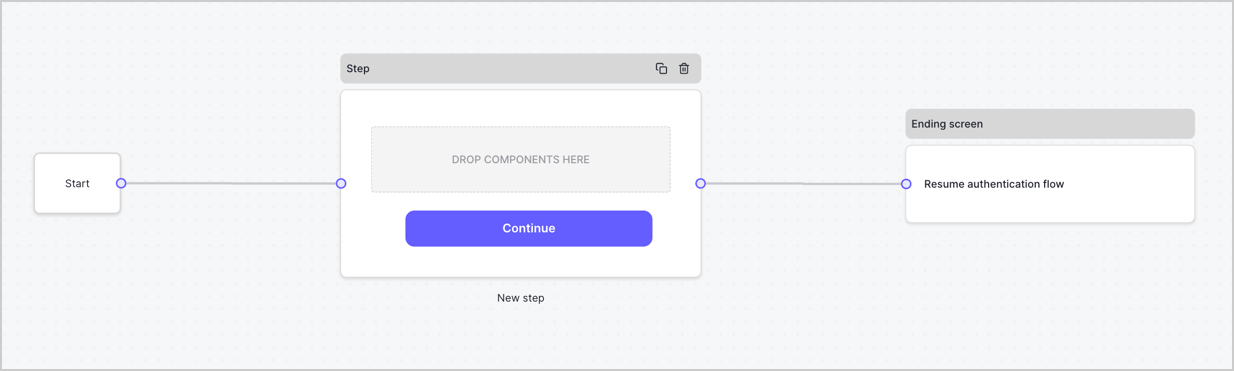
By default, a new form contains a Start node, a Step node, and an Ending screen node.
<Frame>
  <img src="https://mintcdn.com/docs-dev-fix-ss-log-app-metadata-user-metadata-clarification/7E_Iu1vhF4mliqIC/docs/images/cdy7uua7fh8z/2TZ9jSjgEcARFpULI6hz4R/a4319a1bd482f2ee5cc23100fdb2f42c/New-form-Forms-for-action-use-case.png?fit=max&auto=format&n=7E_Iu1vhF4mliqIC&q=85&s=966f3c9e78367063e5181282a6fae938" alt="Dashboard > Forms > Use Cases > Form" data-og-width="1234" width="1234" data-og-height="371" height="371" data-path="docs/images/cdy7uua7fh8z/2TZ9jSjgEcARFpULI6hz4R/a4319a1bd482f2ee5cc23100fdb2f42c/New-form-Forms-for-action-use-case.png" data-optimize="true" data-opv="3" srcset="https://mintcdn.com/docs-dev-fix-ss-log-app-metadata-user-metadata-clarification/7E_Iu1vhF4mliqIC/docs/images/cdy7uua7fh8z/2TZ9jSjgEcARFpULI6hz4R/a4319a1bd482f2ee5cc23100fdb2f42c/New-form-Forms-for-action-use-case.png?w=280&fit=max&auto=format&n=7E_Iu1vhF4mliqIC&q=85&s=5de1d5ba200e3fe11b908db58b53625c 280w, https://mintcdn.com/docs-dev-fix-ss-log-app-metadata-user-metadata-clarification/7E_Iu1vhF4mliqIC/docs/images/cdy7uua7fh8z/2TZ9jSjgEcARFpULI6hz4R/a4319a1bd482f2ee5cc23100fdb2f42c/New-form-Forms-for-action-use-case.png?w=560&fit=max&auto=format&n=7E_Iu1vhF4mliqIC&q=85&s=b7dbba7140aeb897a9fa05f3f32759d5 560w, https://mintcdn.com/docs-dev-fix-ss-log-app-metadata-user-metadata-clarification/7E_Iu1vhF4mliqIC/docs/images/cdy7uua7fh8z/2TZ9jSjgEcARFpULI6hz4R/a4319a1bd482f2ee5cc23100fdb2f42c/New-form-Forms-for-action-use-case.png?w=840&fit=max&auto=format&n=7E_Iu1vhF4mliqIC&q=85&s=92f84e13eeacf4223fcfd12f9177547a 840w, https://mintcdn.com/docs-dev-fix-ss-log-app-metadata-user-metadata-clarification/7E_Iu1vhF4mliqIC/docs/images/cdy7uua7fh8z/2TZ9jSjgEcARFpULI6hz4R/a4319a1bd482f2ee5cc23100fdb2f42c/New-form-Forms-for-action-use-case.png?w=1100&fit=max&auto=format&n=7E_Iu1vhF4mliqIC&q=85&s=a1ba386baf085875befa2ec9e7dbef5c 1100w, https://mintcdn.com/docs-dev-fix-ss-log-app-metadata-user-metadata-clarification/7E_Iu1vhF4mliqIC/docs/images/cdy7uua7fh8z/2TZ9jSjgEcARFpULI6hz4R/a4319a1bd482f2ee5cc23100fdb2f42c/New-form-Forms-for-action-use-case.png?w=1650&fit=max&auto=format&n=7E_Iu1vhF4mliqIC&q=85&s=3d39c25a40c2ac5acea51601ec33adff 1650w, https://mintcdn.com/docs-dev-fix-ss-log-app-metadata-user-metadata-clarification/7E_Iu1vhF4mliqIC/docs/images/cdy7uua7fh8z/2TZ9jSjgEcARFpULI6hz4R/a4319a1bd482f2ee5cc23100fdb2f42c/New-form-Forms-for-action-use-case.png?w=2500&fit=max&auto=format&n=7E_Iu1vhF4mliqIC&q=85&s=9585d12dd6a3c3bc7178010502c4fab1 2500w" />
</Frame>

### Configure the Step node

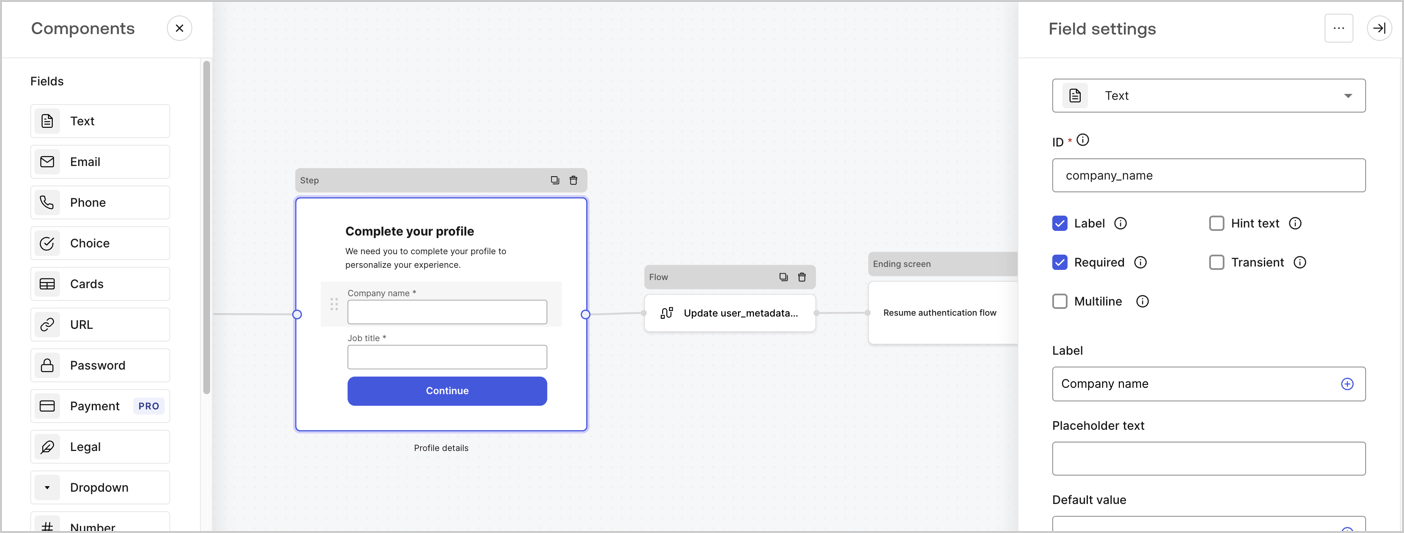
The Step node is the graphical interface visible to users. Add [Fields](/docs/customize/forms/nodes-and-components) to the Step node to collect the user's company name and job title values by following these steps:

1. Drag a **Rich text** field from the **Components menu** into the **Step** node.

   * **Rich text**: Enter a custom message.

     * **Example**: `Complete your profile! We need you to complete your profile to personalize your experience.`
   * Select **Save**.
2. Drag a **Text** field into the **Step** node.

   * **ID**: Enter `company_name`.
   * **Label**: Enable the checkbox.
   * **Label**: Enter `Company name`.
   * **Required**: Enable the checkbox.
   * Select **Save**.
3. Drag a **Text** field into the **Step** node.

   1. **ID**: Enter `job_title`.
   2. **Label**: Enter `Job title`.
   3. **Label**: Enable the checkbox.
   4. **Required**: Enable the checkbox.
   5. Select **Save**.
4. Select **Publish** to save.
<Frame>
  <img src="https://mintcdn.com/docs-dev-fix-ss-log-app-metadata-user-metadata-clarification/kea7N-eir4Zjm6iz/docs/images/cdy7uua7fh8z/6H1lRzwKyYioQyQJ9MtIoM/aa248e92fc028a68a5b92ff361a11644/progressive-profile-step.png?fit=max&auto=format&n=kea7N-eir4Zjm6iz&q=85&s=cac81ee7096a284eb873915d2387a806" alt="Dashboard > Actions > Forms > Form > Step node" data-og-width="1404" width="1404" data-og-height="533" height="533" data-path="docs/images/cdy7uua7fh8z/6H1lRzwKyYioQyQJ9MtIoM/aa248e92fc028a68a5b92ff361a11644/progressive-profile-step.png" data-optimize="true" data-opv="3" srcset="https://mintcdn.com/docs-dev-fix-ss-log-app-metadata-user-metadata-clarification/kea7N-eir4Zjm6iz/docs/images/cdy7uua7fh8z/6H1lRzwKyYioQyQJ9MtIoM/aa248e92fc028a68a5b92ff361a11644/progressive-profile-step.png?w=280&fit=max&auto=format&n=kea7N-eir4Zjm6iz&q=85&s=de11d5ddad36c83b81dc1785013344fc 280w, https://mintcdn.com/docs-dev-fix-ss-log-app-metadata-user-metadata-clarification/kea7N-eir4Zjm6iz/docs/images/cdy7uua7fh8z/6H1lRzwKyYioQyQJ9MtIoM/aa248e92fc028a68a5b92ff361a11644/progressive-profile-step.png?w=560&fit=max&auto=format&n=kea7N-eir4Zjm6iz&q=85&s=46f7798aec6a515f121adf61da6d2f13 560w, https://mintcdn.com/docs-dev-fix-ss-log-app-metadata-user-metadata-clarification/kea7N-eir4Zjm6iz/docs/images/cdy7uua7fh8z/6H1lRzwKyYioQyQJ9MtIoM/aa248e92fc028a68a5b92ff361a11644/progressive-profile-step.png?w=840&fit=max&auto=format&n=kea7N-eir4Zjm6iz&q=85&s=1c65a1fb74821fbc106941e42c7c2376 840w, https://mintcdn.com/docs-dev-fix-ss-log-app-metadata-user-metadata-clarification/kea7N-eir4Zjm6iz/docs/images/cdy7uua7fh8z/6H1lRzwKyYioQyQJ9MtIoM/aa248e92fc028a68a5b92ff361a11644/progressive-profile-step.png?w=1100&fit=max&auto=format&n=kea7N-eir4Zjm6iz&q=85&s=bdd326beb09451be71f4300cd247e628 1100w, https://mintcdn.com/docs-dev-fix-ss-log-app-metadata-user-metadata-clarification/kea7N-eir4Zjm6iz/docs/images/cdy7uua7fh8z/6H1lRzwKyYioQyQJ9MtIoM/aa248e92fc028a68a5b92ff361a11644/progressive-profile-step.png?w=1650&fit=max&auto=format&n=kea7N-eir4Zjm6iz&q=85&s=778c52573356db98c7b4124c508a24fc 1650w, https://mintcdn.com/docs-dev-fix-ss-log-app-metadata-user-metadata-clarification/kea7N-eir4Zjm6iz/docs/images/cdy7uua7fh8z/6H1lRzwKyYioQyQJ9MtIoM/aa248e92fc028a68a5b92ff361a11644/progressive-profile-step.png?w=2500&fit=max&auto=format&n=kea7N-eir4Zjm6iz&q=85&s=f7c62ac4c3d0ae3711ca523ad8dfc03c 2500w" />
</Frame>

### Configure the flow node

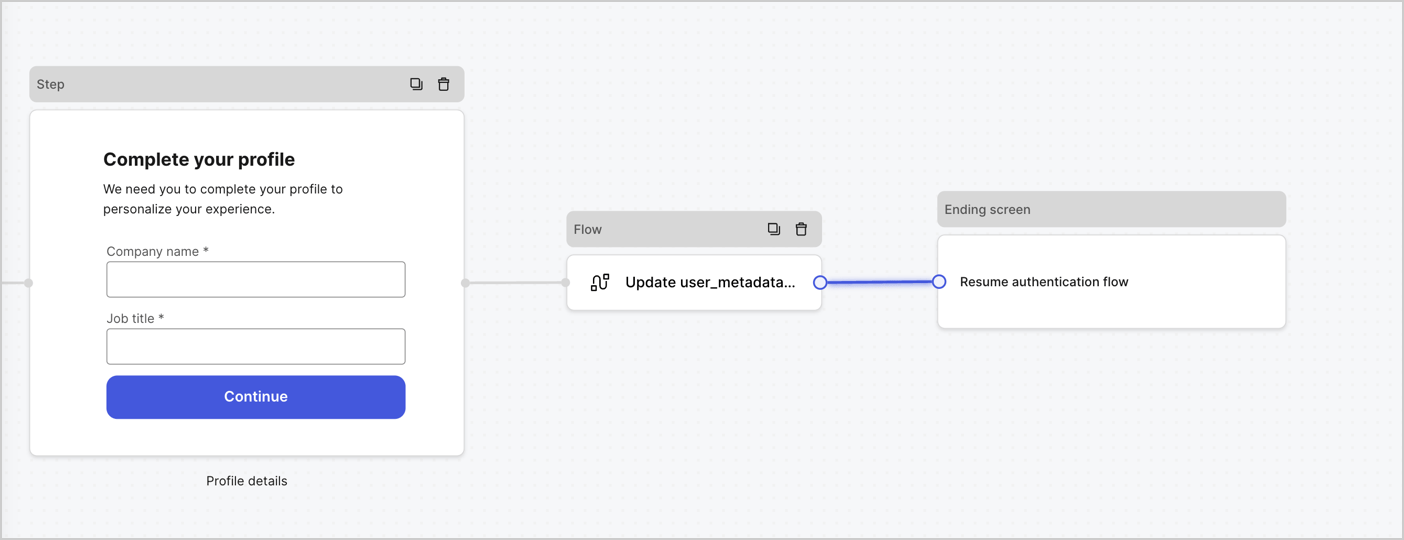
Add a **Flow** node after the **Step** node to update the `user_metadata` and resume the authentication flow by following these steps:

1. Select **Flow** from the bottom of the Form editor.
2. Remove the existing link between the **Step** and **Ending Screen** nodes.
3. Select the new **Flow** > **Click to add a flow** > **Create a new flow.**

   * Enter `Update user_metadata` in the **Name** field.
   * Select **Create**.
   * Select **Save**.
4. Link the **Flow** node to the **Step** and **Ending Screen** nodes as pictured below.
5. Select **Publish** to save.
<Frame>
  <img src="https://mintcdn.com/docs-dev-fix-ss-log-app-metadata-user-metadata-clarification/HVFV1Xr616dc6urt/docs/images/cdy7uua7fh8z/5C91DaWn4LGtJT9BF87ssu/095171d0c452a287c44bfde12fd6d13f/link-nodes.png?fit=max&auto=format&n=HVFV1Xr616dc6urt&q=85&s=4baf2e06d04da20858795606798a347c" alt="Dashboard > Actions > Forms > Form" data-og-width="1404" width="1404" data-og-height="540" height="540" data-path="docs/images/cdy7uua7fh8z/5C91DaWn4LGtJT9BF87ssu/095171d0c452a287c44bfde12fd6d13f/link-nodes.png" data-optimize="true" data-opv="3" srcset="https://mintcdn.com/docs-dev-fix-ss-log-app-metadata-user-metadata-clarification/HVFV1Xr616dc6urt/docs/images/cdy7uua7fh8z/5C91DaWn4LGtJT9BF87ssu/095171d0c452a287c44bfde12fd6d13f/link-nodes.png?w=280&fit=max&auto=format&n=HVFV1Xr616dc6urt&q=85&s=4cd4aacbae6cbc2d30b5e9a0abef3b71 280w, https://mintcdn.com/docs-dev-fix-ss-log-app-metadata-user-metadata-clarification/HVFV1Xr616dc6urt/docs/images/cdy7uua7fh8z/5C91DaWn4LGtJT9BF87ssu/095171d0c452a287c44bfde12fd6d13f/link-nodes.png?w=560&fit=max&auto=format&n=HVFV1Xr616dc6urt&q=85&s=07316813dae8386e4eac2995a56d2670 560w, https://mintcdn.com/docs-dev-fix-ss-log-app-metadata-user-metadata-clarification/HVFV1Xr616dc6urt/docs/images/cdy7uua7fh8z/5C91DaWn4LGtJT9BF87ssu/095171d0c452a287c44bfde12fd6d13f/link-nodes.png?w=840&fit=max&auto=format&n=HVFV1Xr616dc6urt&q=85&s=ff3e196f904e6d1f1db5041d6f90a155 840w, https://mintcdn.com/docs-dev-fix-ss-log-app-metadata-user-metadata-clarification/HVFV1Xr616dc6urt/docs/images/cdy7uua7fh8z/5C91DaWn4LGtJT9BF87ssu/095171d0c452a287c44bfde12fd6d13f/link-nodes.png?w=1100&fit=max&auto=format&n=HVFV1Xr616dc6urt&q=85&s=354bf60c1bd74af2a1fcacaae1f7205d 1100w, https://mintcdn.com/docs-dev-fix-ss-log-app-metadata-user-metadata-clarification/HVFV1Xr616dc6urt/docs/images/cdy7uua7fh8z/5C91DaWn4LGtJT9BF87ssu/095171d0c452a287c44bfde12fd6d13f/link-nodes.png?w=1650&fit=max&auto=format&n=HVFV1Xr616dc6urt&q=85&s=3b74adb5293fac714c8857f8ae4d2045 1650w, https://mintcdn.com/docs-dev-fix-ss-log-app-metadata-user-metadata-clarification/HVFV1Xr616dc6urt/docs/images/cdy7uua7fh8z/5C91DaWn4LGtJT9BF87ssu/095171d0c452a287c44bfde12fd6d13f/link-nodes.png?w=2500&fit=max&auto=format&n=HVFV1Xr616dc6urt&q=85&s=89c70f71210987a7929e86fc9e613e9f 2500w" />
</Frame>

Add an Auth0 Update user action to the flow by following these steps:

1. Select the **Update user\_metadata** flow, then select the **Edit Flow** to open the Flow editor in a new tab.
2. Below the **Start** action, select the **+** icon to add an **Update user** action. Complete the fields below, then select **Save** to continue.

   * **Connection**: Select from the dropdown the Vault connection to your M2M application.

   * **User ID**: Enter `{{context.user.user_id}}`.

   * **Body**: Copy and paste the following code to update the user\_metadata with `job_title` and `company_name` properties.

     ```json lines theme={null}
     {
        "user_metadata": {
           "job_title": "{{fields.job_title}}",
           "company_name": "{{fields.company_name}}"
        }
     }
     ```

   * Select **Save**.
3. Select **Publish** to save.

<Frame>
  <img src="https://mintcdn.com/docs-dev-fix-ss-log-app-metadata-user-metadata-clarification/A58d2BA36_kazioB/docs/images/cdy7uua7fh8z/65Jx4W5oIZJyyvA8z4HqIx/0661b1a8ca6361c54fc4fef07ba59f0b/update-user.png?fit=max&auto=format&n=A58d2BA36_kazioB&q=85&s=8d720b82021d4946241239f95664d36c" alt="Dashboard > Actions > Forms > Flows" data-og-width="1404" width="1404" data-og-height="244" height="244" data-path="docs/images/cdy7uua7fh8z/65Jx4W5oIZJyyvA8z4HqIx/0661b1a8ca6361c54fc4fef07ba59f0b/update-user.png" data-optimize="true" data-opv="3" srcset="https://mintcdn.com/docs-dev-fix-ss-log-app-metadata-user-metadata-clarification/A58d2BA36_kazioB/docs/images/cdy7uua7fh8z/65Jx4W5oIZJyyvA8z4HqIx/0661b1a8ca6361c54fc4fef07ba59f0b/update-user.png?w=280&fit=max&auto=format&n=A58d2BA36_kazioB&q=85&s=e3f73de5982afbb369faaeb0d0de3242 280w, https://mintcdn.com/docs-dev-fix-ss-log-app-metadata-user-metadata-clarification/A58d2BA36_kazioB/docs/images/cdy7uua7fh8z/65Jx4W5oIZJyyvA8z4HqIx/0661b1a8ca6361c54fc4fef07ba59f0b/update-user.png?w=560&fit=max&auto=format&n=A58d2BA36_kazioB&q=85&s=cd413b622a4a504bb71b1e97aaee4df6 560w, https://mintcdn.com/docs-dev-fix-ss-log-app-metadata-user-metadata-clarification/A58d2BA36_kazioB/docs/images/cdy7uua7fh8z/65Jx4W5oIZJyyvA8z4HqIx/0661b1a8ca6361c54fc4fef07ba59f0b/update-user.png?w=840&fit=max&auto=format&n=A58d2BA36_kazioB&q=85&s=9dc7224cd32ce98e372921aaf443f29d 840w, https://mintcdn.com/docs-dev-fix-ss-log-app-metadata-user-metadata-clarification/A58d2BA36_kazioB/docs/images/cdy7uua7fh8z/65Jx4W5oIZJyyvA8z4HqIx/0661b1a8ca6361c54fc4fef07ba59f0b/update-user.png?w=1100&fit=max&auto=format&n=A58d2BA36_kazioB&q=85&s=9324ac459e867e26fc8717d721056b44 1100w, https://mintcdn.com/docs-dev-fix-ss-log-app-metadata-user-metadata-clarification/A58d2BA36_kazioB/docs/images/cdy7uua7fh8z/65Jx4W5oIZJyyvA8z4HqIx/0661b1a8ca6361c54fc4fef07ba59f0b/update-user.png?w=1650&fit=max&auto=format&n=A58d2BA36_kazioB&q=85&s=2f7b4504021fb7508d48dbd93b2dbf58 1650w, https://mintcdn.com/docs-dev-fix-ss-log-app-metadata-user-metadata-clarification/A58d2BA36_kazioB/docs/images/cdy7uua7fh8z/65Jx4W5oIZJyyvA8z4HqIx/0661b1a8ca6361c54fc4fef07ba59f0b/update-user.png?w=2500&fit=max&auto=format&n=A58d2BA36_kazioB&q=85&s=2fb06f865fb5b6223d8e57f9029d9a7b 2500w" />
</Frame>

### Retrieve the form render code

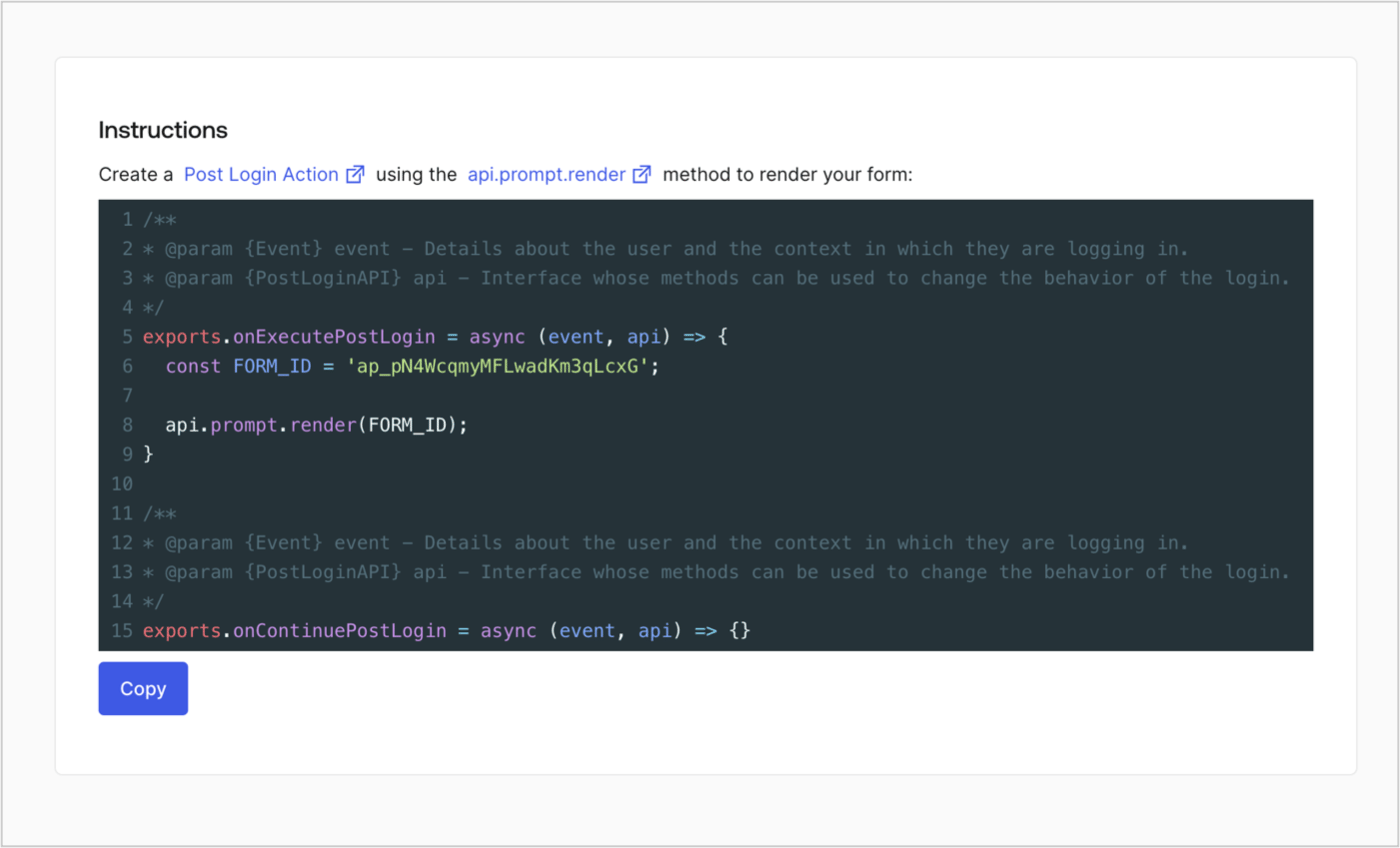
Retrieve the form render code to visually render the form with a custom Post Login Action by following these steps:

* From the Form editor, select **`<> Render`**.
* Select **Copy**.
<Frame>
  <img src="https://mintcdn.com/docs-dev-fix-ss-log-app-metadata-user-metadata-clarification/_-ecZoC-zidTtQ_x/docs/images/cdy7uua7fh8z/2EIUzc539sq9lwoTKbjoJv/496a864c0fc44a782c9cadca119dbfb0/embed.png?fit=max&auto=format&n=_-ecZoC-zidTtQ_x&q=85&s=22f3ea753fe686ab4c66f8450dee5e30" alt="Dashboard > Actions > Forms > Form > Embed" data-og-width="1400" width="1400" data-og-height="848" height="848" data-path="docs/images/cdy7uua7fh8z/2EIUzc539sq9lwoTKbjoJv/496a864c0fc44a782c9cadca119dbfb0/embed.png" data-optimize="true" data-opv="3" srcset="https://mintcdn.com/docs-dev-fix-ss-log-app-metadata-user-metadata-clarification/_-ecZoC-zidTtQ_x/docs/images/cdy7uua7fh8z/2EIUzc539sq9lwoTKbjoJv/496a864c0fc44a782c9cadca119dbfb0/embed.png?w=280&fit=max&auto=format&n=_-ecZoC-zidTtQ_x&q=85&s=0313ce65e3872e65b30b852a627f63c3 280w, https://mintcdn.com/docs-dev-fix-ss-log-app-metadata-user-metadata-clarification/_-ecZoC-zidTtQ_x/docs/images/cdy7uua7fh8z/2EIUzc539sq9lwoTKbjoJv/496a864c0fc44a782c9cadca119dbfb0/embed.png?w=560&fit=max&auto=format&n=_-ecZoC-zidTtQ_x&q=85&s=bc78dfe59c148a6d78c26a4ceeaa384a 560w, https://mintcdn.com/docs-dev-fix-ss-log-app-metadata-user-metadata-clarification/_-ecZoC-zidTtQ_x/docs/images/cdy7uua7fh8z/2EIUzc539sq9lwoTKbjoJv/496a864c0fc44a782c9cadca119dbfb0/embed.png?w=840&fit=max&auto=format&n=_-ecZoC-zidTtQ_x&q=85&s=d46287dca2fac594053322531a88db88 840w, https://mintcdn.com/docs-dev-fix-ss-log-app-metadata-user-metadata-clarification/_-ecZoC-zidTtQ_x/docs/images/cdy7uua7fh8z/2EIUzc539sq9lwoTKbjoJv/496a864c0fc44a782c9cadca119dbfb0/embed.png?w=1100&fit=max&auto=format&n=_-ecZoC-zidTtQ_x&q=85&s=12120761c0cb5b52c659bea6158b2993 1100w, https://mintcdn.com/docs-dev-fix-ss-log-app-metadata-user-metadata-clarification/_-ecZoC-zidTtQ_x/docs/images/cdy7uua7fh8z/2EIUzc539sq9lwoTKbjoJv/496a864c0fc44a782c9cadca119dbfb0/embed.png?w=1650&fit=max&auto=format&n=_-ecZoC-zidTtQ_x&q=85&s=ff4574165218f525a1f8b08a99c9e131 1650w, https://mintcdn.com/docs-dev-fix-ss-log-app-metadata-user-metadata-clarification/_-ecZoC-zidTtQ_x/docs/images/cdy7uua7fh8z/2EIUzc539sq9lwoTKbjoJv/496a864c0fc44a782c9cadca119dbfb0/embed.png?w=2500&fit=max&auto=format&n=_-ecZoC-zidTtQ_x&q=85&s=ca1ac72c119c061b8e4720801cbea9f4 2500w" />
</Frame>

## Create a Post Login Action

Create a post-login Action to render your form by following these steps:

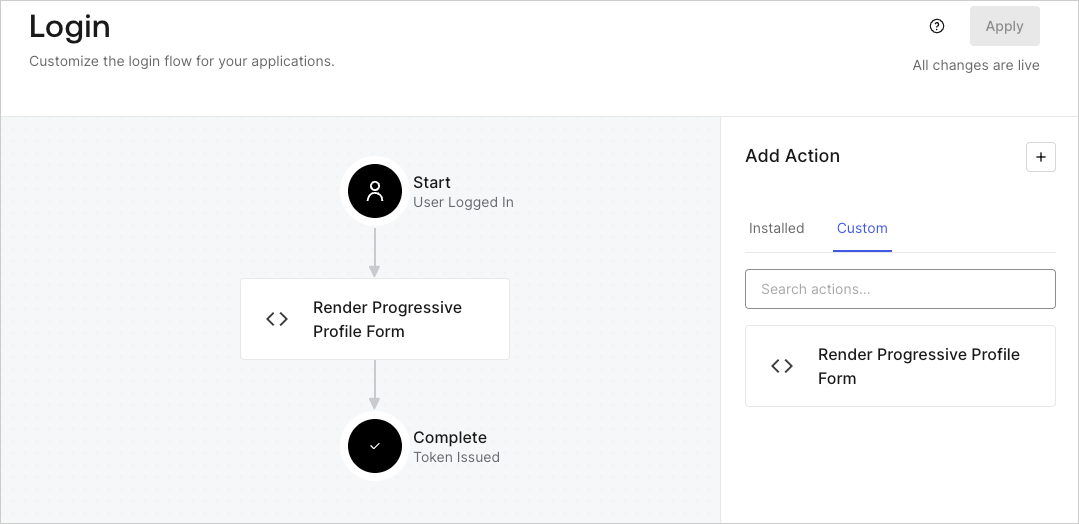
1. Navigate to **Auth0 Dashboard > Actions > Flows > Login.**
2. Select the **+** icon and select **Build from scratch**:

   * **Name**: Enter `Render Progressive Profile Form`.
   * **Trigger**: Select `Login / Post Login`.
   * **Runtime**: Select the recommended version.
3. Select **Create**.

To configure the post-login Action:

1. Delete the existing code from the Code editor.
2. Paste the form embed code into the Code editor.
3. Edit the code to define the conditional logic that will render the form.

   ```javascript lines theme={null}
   /**
   * @param {Event} event - Details about the user and the context in which they are logging in.
   * @param {PostLoginAPI} api - Interface whose methods can be used to change the behavior of the login.
   */
   exports.onExecutePostLogin = async (event, api) => {
     const FORM_ID = 'REPLACE_WITH_YOUR_FORM_ID';

     if (
       event.stats.logins_count > 2 &&
       !event.user.user_metadata.company_name &&
       !event.user.user_metadata.job_title
     ) {
       api.prompt.render(FORM_ID);
     }
   }

   exports.onContinuePostLogin = async (event, api) => { }
   ```

   <Callout icon="file-lines" color="#0EA5E9" iconType="regular">
     The example code above will render the form when a user has a login count > 2 and is missing the user metadata company\_name and job\_title properties.
   </Callout>
4. Select **Deploy.**
5. Drag and Drop the **Render Progressive Profile Form** Action to the **Login** flow.
   <Frame>
     <img src="https://mintcdn.com/docs-dev-fix-ss-log-app-metadata-user-metadata-clarification/49A3eltFkymaOVlf/docs/images/cdy7uua7fh8z/1QjjZdpTqTxx012UDN4xk9/99fba5ef4068a5688f1762eea7f42976/renderprogessiveprofile.png?fit=max&auto=format&n=49A3eltFkymaOVlf&q=85&s=610581a7138c74e08b5b7bae85e3b6d3" alt="Dashboard > Forms > Use Cases Progressive Profile Login Action" data-og-width="1079" width="1079" data-og-height="524" height="524" data-path="docs/images/cdy7uua7fh8z/1QjjZdpTqTxx012UDN4xk9/99fba5ef4068a5688f1762eea7f42976/renderprogessiveprofile.png" data-optimize="true" data-opv="3" srcset="https://mintcdn.com/docs-dev-fix-ss-log-app-metadata-user-metadata-clarification/49A3eltFkymaOVlf/docs/images/cdy7uua7fh8z/1QjjZdpTqTxx012UDN4xk9/99fba5ef4068a5688f1762eea7f42976/renderprogessiveprofile.png?w=280&fit=max&auto=format&n=49A3eltFkymaOVlf&q=85&s=2825a3677e905d3528967750cac56e0c 280w, https://mintcdn.com/docs-dev-fix-ss-log-app-metadata-user-metadata-clarification/49A3eltFkymaOVlf/docs/images/cdy7uua7fh8z/1QjjZdpTqTxx012UDN4xk9/99fba5ef4068a5688f1762eea7f42976/renderprogessiveprofile.png?w=560&fit=max&auto=format&n=49A3eltFkymaOVlf&q=85&s=7ad0c087a04c881a6232c832aa3e2d54 560w, https://mintcdn.com/docs-dev-fix-ss-log-app-metadata-user-metadata-clarification/49A3eltFkymaOVlf/docs/images/cdy7uua7fh8z/1QjjZdpTqTxx012UDN4xk9/99fba5ef4068a5688f1762eea7f42976/renderprogessiveprofile.png?w=840&fit=max&auto=format&n=49A3eltFkymaOVlf&q=85&s=eb819e74f361d10fad900a8a9c3ac469 840w, https://mintcdn.com/docs-dev-fix-ss-log-app-metadata-user-metadata-clarification/49A3eltFkymaOVlf/docs/images/cdy7uua7fh8z/1QjjZdpTqTxx012UDN4xk9/99fba5ef4068a5688f1762eea7f42976/renderprogessiveprofile.png?w=1100&fit=max&auto=format&n=49A3eltFkymaOVlf&q=85&s=59033064b1fd4c98311e2d0666a12e5d 1100w, https://mintcdn.com/docs-dev-fix-ss-log-app-metadata-user-metadata-clarification/49A3eltFkymaOVlf/docs/images/cdy7uua7fh8z/1QjjZdpTqTxx012UDN4xk9/99fba5ef4068a5688f1762eea7f42976/renderprogessiveprofile.png?w=1650&fit=max&auto=format&n=49A3eltFkymaOVlf&q=85&s=b1a2b77a790f70fbaad1397763eb1fe8 1650w, https://mintcdn.com/docs-dev-fix-ss-log-app-metadata-user-metadata-clarification/49A3eltFkymaOVlf/docs/images/cdy7uua7fh8z/1QjjZdpTqTxx012UDN4xk9/99fba5ef4068a5688f1762eea7f42976/renderprogessiveprofile.png?w=2500&fit=max&auto=format&n=49A3eltFkymaOVlf&q=85&s=f35d05b1b6ed43bea56ca93d7d49c78f 2500w" />
   </Frame>
6. Select **Apply**.

### Test implementation

Test the implementation by following these steps:

1. Log in with an existing user whose login count is greater than 2 and their `user_metadata` attributes `company_name` and `job_title` have no values.
2. The post-login action in the Login flow will render the form and prompt for the information.
3. Select **Auth0 Dashboard > User Management > Users,** locate the user and verify that the `user_metadata` attributes `company_name` and `job_title` contain information.
